USB-C Headphones Fix for CW Practice
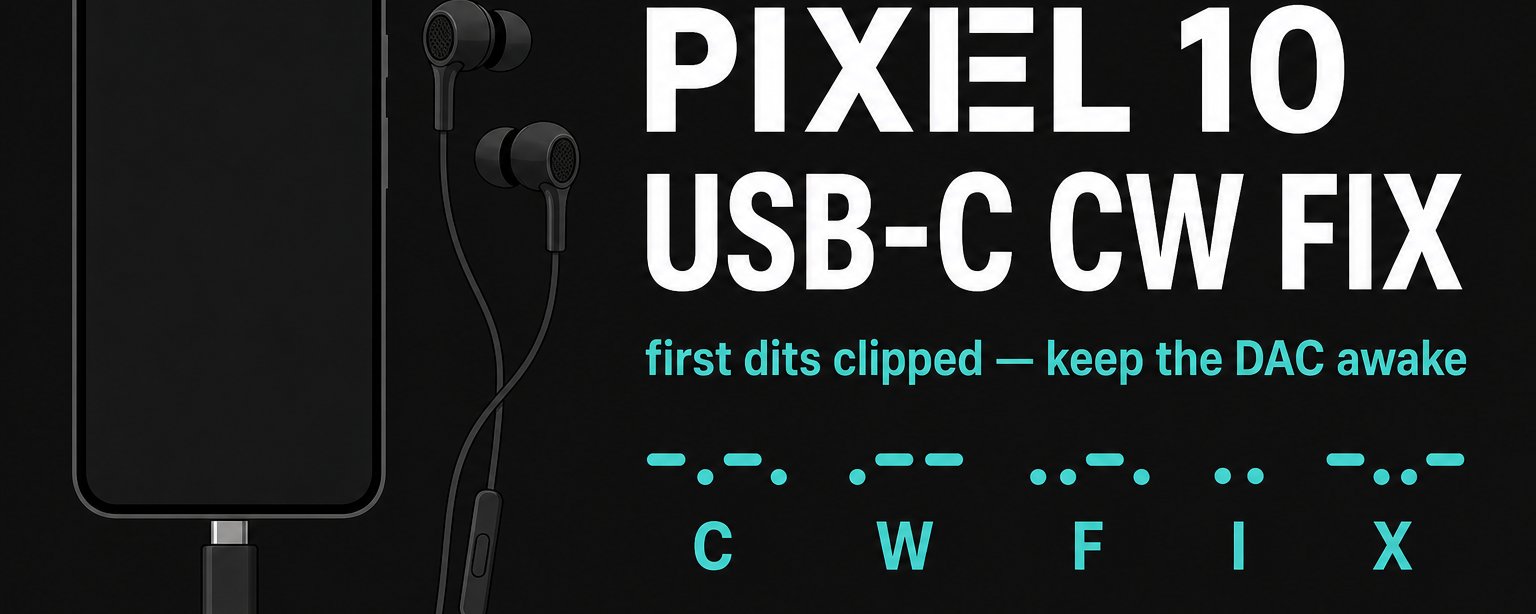
If you try to practice CW Morse on a Google Pixel 10 (or an equivalent device) with wired USB-C headphones, you may find that the first part of every transmission is missing. If that’s your experience, you aren’t losing your mind, your app isn’t broken, and the video isn’t the problem.
This weekend I hit the issue trying to listen to the Kurt Zoglmann (AD0WE) Morse Code Ninja set, Top 100 Words at 25 wpm, with my new USB-C headphones. The format of Kurt’s training video is:
- Word sent in Morse (pause)
- Word spoken (pause)
- Repeated in Morse (pause)
- Courtesy tone (pause)
It’s a great training set. But with my new USB-C headphones, it was unusable, the first part of each transmission after each pause got clipped.
What Was Actually Happening
The Pixel 10 has no 3.5 mm jack. Wired phones are either native USB-C headphones or a USB-C-to-3.5 mm dongle. Both put a tiny DAC (digital-to-analog converter) on the USB port.
My best explanation: the DAC sleeps when the stream looks quiet. Morse practice is almost designed to trigger it: tone, pause, speech, pause, gap, pause, tone again. On my device, each pause put it to sleep. The DAC then took a fraction of a second to wake up, which clipped the beginning of each transmission. Speakers on the phone play the same video fine. I don’t have a packet capture or vendor confirmation, just this symptom pattern and the fix below actually working.
Note: Bluetooth has its own latency problems for CW. The CW Studio app had slight delays over Bluetooth but was usable. This write-up is primarily for the USB-C wired path, but as a bonus, the fix below also improved CW Studio’s functionality, with the USB-C headphones now working better than my Bluetooth earbuds for CW.
This looks like the same symptom I’ve seen described for language-learning apps and audiobooks: the first syllable missing after a pause. I don’t have a confirmed root-cause source for those reports either, just a matching pattern. CW just makes it obvious.
Hardware used: Google Pixel 10, and Elgin Rumble wired USB-C earplugs (native USB-C, mic, in-line control, not a 3.5 mm dongle). My native USB-C headphones still slept; I can’t speak for every native USB-C pair. I didn’t test an analog dongle myself, but they’re commonly reported as worse. Changing chips can help, but software can keep this DAC awake.
The Fix
1. Keep the DAC Awake With a Background Tone
Install a sine-wave generator (I used Frequency Generator by LuxDeLux).
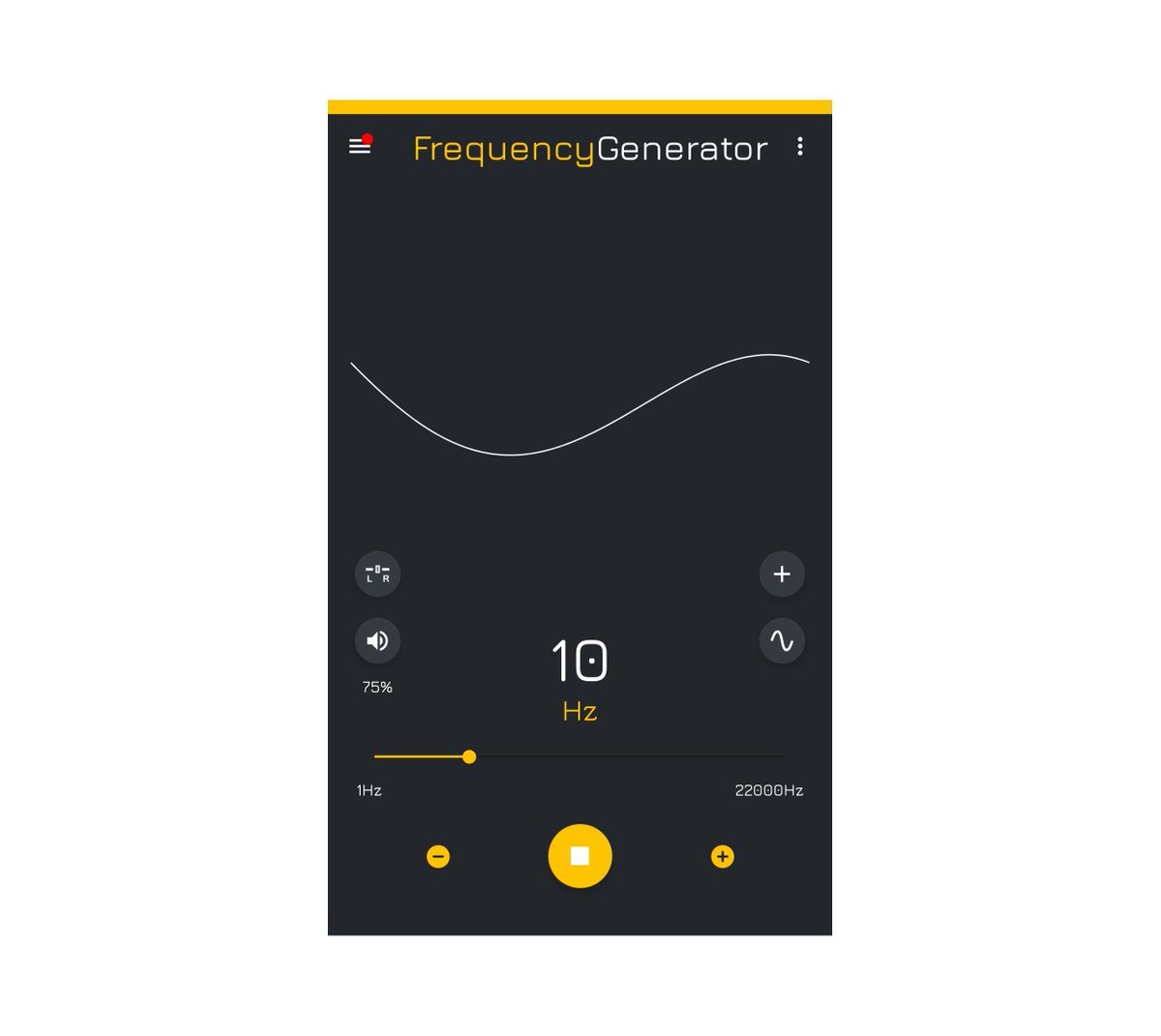
- Wave: sine
- Frequency: 10 Hz
- Level: about 75% in the app (start lower if you hear rumble, raise only until the clipping goes away, and stop there, don’t chase further fixes by turning it up)
- Leave it playing in the background while YouTube runs
10 Hz is below what most people hear as a tone. The stream is enough that the USB DAC never sees silence. If 10 Hz thumps the drivers, use 18-20 kHz instead and keep the level low; that range is more audible to some ears, so use the lowest level that clears the clipping since it runs continuously in-ear for the whole session. Set the generator app to unrestricted battery the same way as YouTube below, or Android will kill it.
2. YouTube Must Be Allowed to Run in the Background
Settings → Apps → YouTube → Battery / Allow background usage:
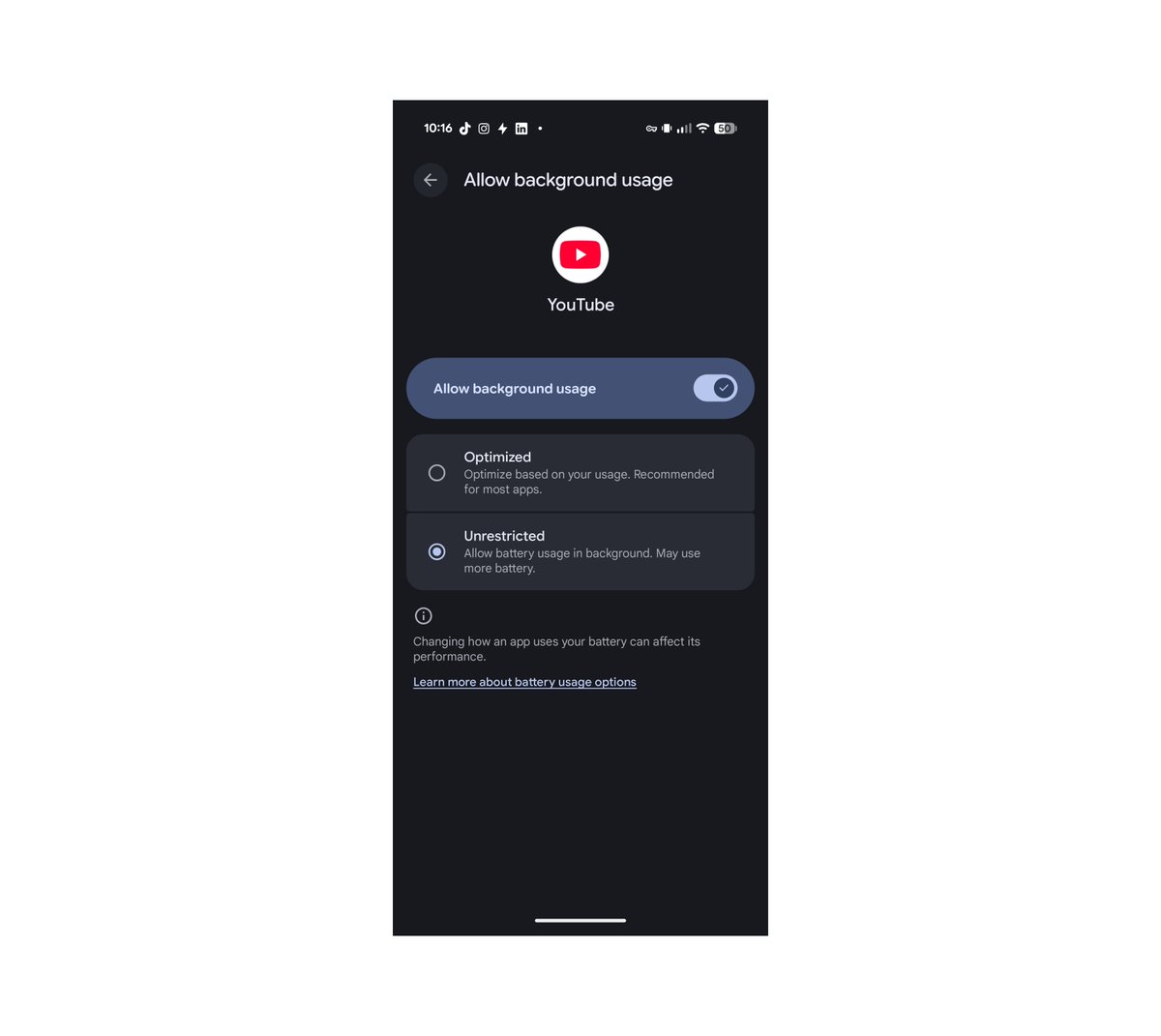
- Allow background usage: on
- Battery: Unrestricted (not Optimized)
Otherwise, the video or the mix with the tone generator freezes when you leave the screen or switch apps.
3. Turn Off Pixel Audio Processing (Optional)
Settings → Sound & vibration:
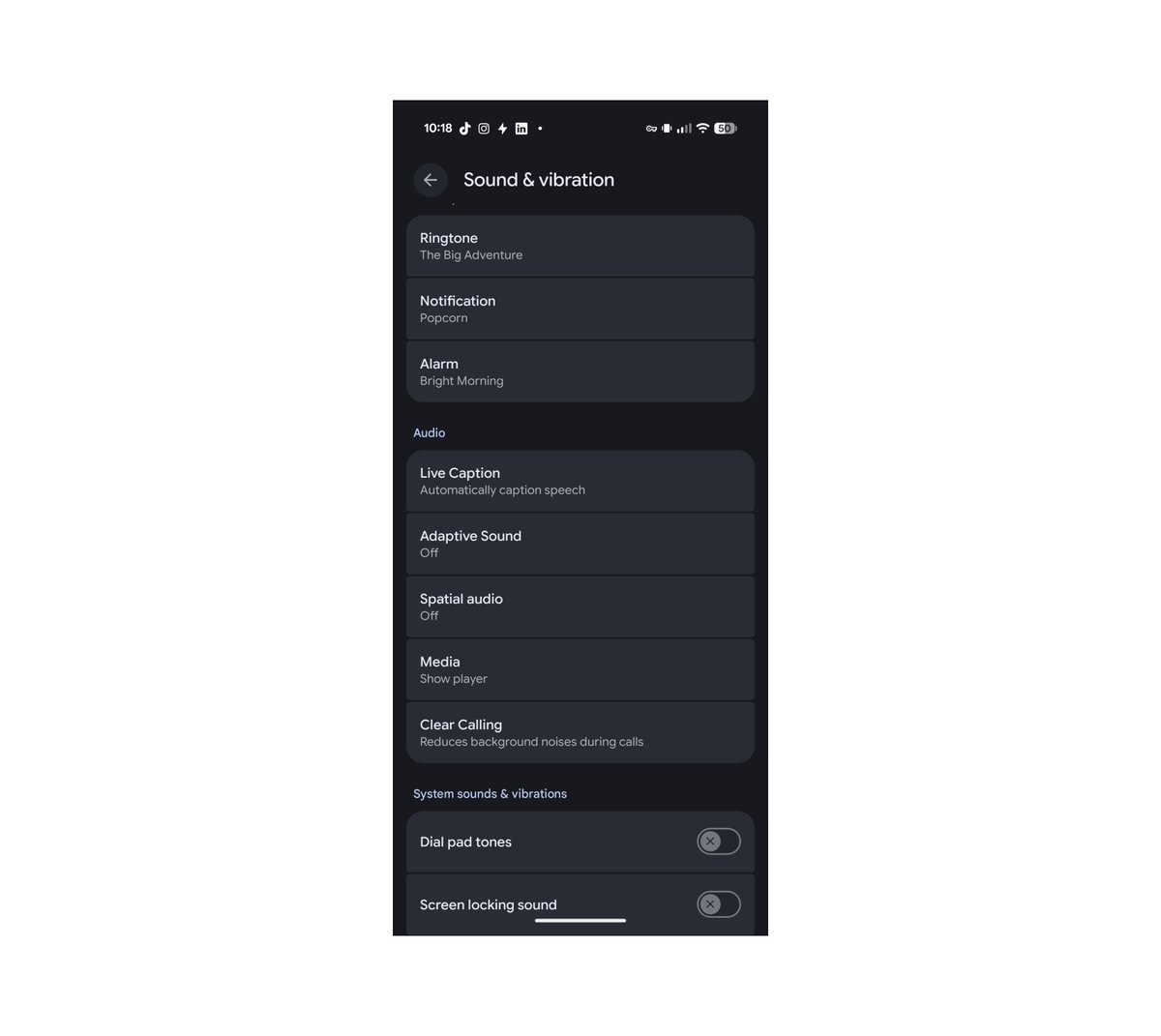
- Adaptive Sound: Off
- Spatial audio: Off
These weren’t required for the fix that actually stopped the clipping (the tone plus Unrestricted YouTube). I turned them off as a precaution: they aren’t helping a 600-800 Hz Morse note, and extra processing is one more place a fade-in or gate could get introduced.
4. Developer Option: Default USB Mode (Optional)
Enable Developer options (About phone → tap Build number seven times → confirm PIN). Then:
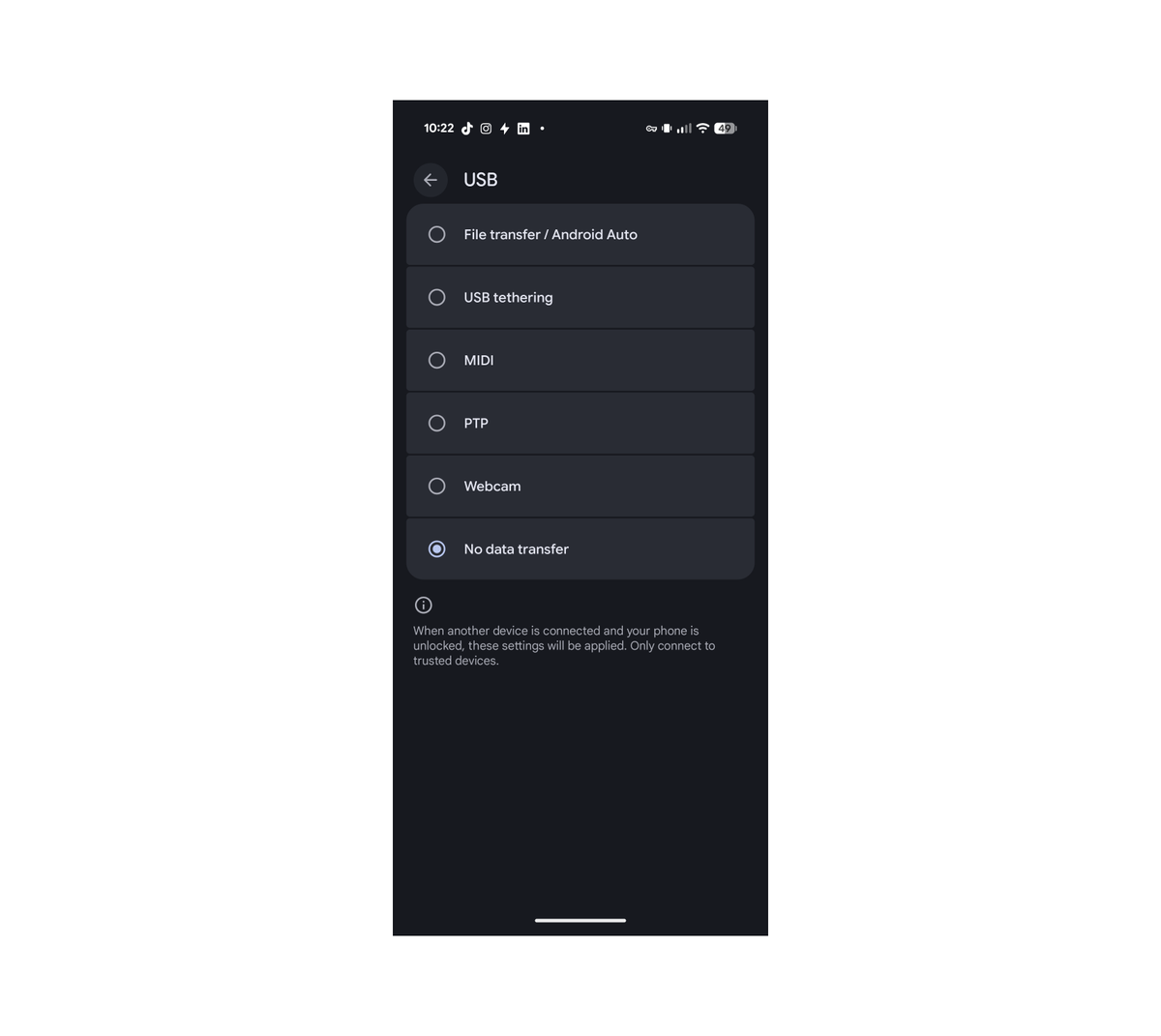
Developer options → Default USB configuration → No data transfer. Unplug and replug the headphones after you change it.
This is one of the settings people commonly try for Pixel USB-audio glitches. MIDI or PTP is worth a try if “No data transfer” does nothing on your unit. Leave USB debugging off unless you need it.
How I Practice CW With This Setup
- Plug in the USB-C phones.
- Start the 10 Hz tone and leave it running.
- Start the Morse video.
- Copy.
A keep-alive tone plus Unrestricted YouTube is the combination that stopped the clipping on this phone.
If It Still Clips
- Confirm the same video plays complete on the Pixel speakers. If the speakers are fine and USB-C isn’t, it’s the DAC, not the file.
- Raise the generator level by one step, or switch between 10 Hz and 18-20 kHz.
- Try the official Google or Apple USB-C-to-3.5 mm adapter. Different DAC chips sleep differently.
There doesn’t appear to be a Pixel toggle labeled “never sleep USB audio.” The tone is the workaround. Compared with “just buy different headphones,” this keeps the Elgin Rumbles in the loop and matches the same DAC-sleep pattern described above, my working theory, not a confirmed root cause.
For more on learning CW, check out this interview with the Morse Code Ninja to hear Kurt’s story and how he builds that practice format. (Learning Morse Code with “Morse Code Ninja” #YTHF21, Charlie NJ7V / Red Summit RF.)
Here’s the original post on X:
Hope this helps! 73!
If this helps you, check out my adblob to support the work.